

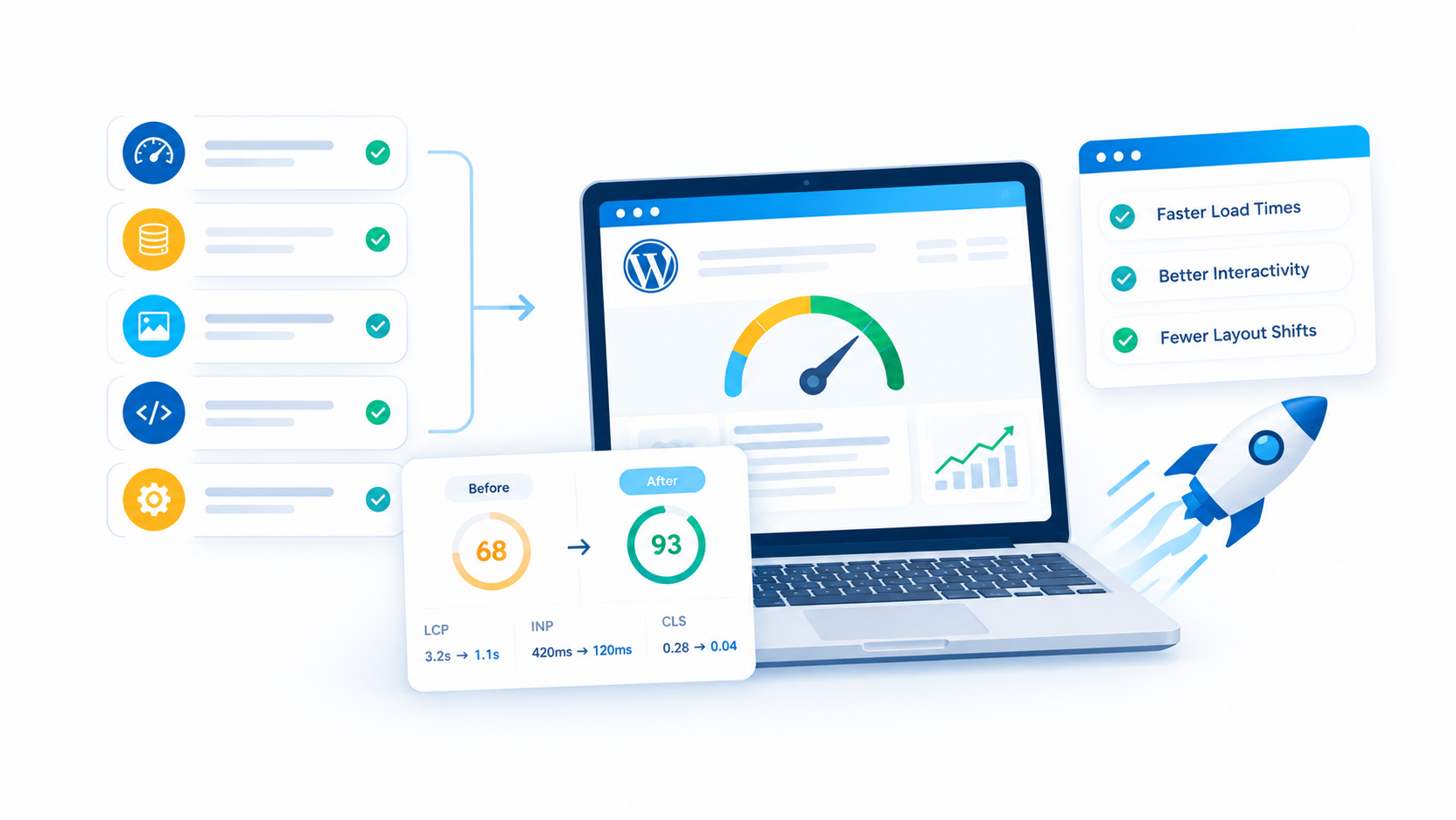
A faster website does more than improve user experience. Effective WordPress performance optimization can reduce unnecessary server processing, limit data transfers, and make your website more resource efficient without sacrificing functionality.
Many WordPress websites use more resources than necessary because of oversized images, excessive scripts, inefficient themes, and poorly managed background tasks. Fixing these issues can improve loading speed while supporting a more sustainable approach to website management.
The key is to focus on changes that deliver measurable performance improvements rather than adding more optimization plugins. Here are five high impact tweaks to help you build a faster, leaner, and greener WordPress website.
Quick Answer
Make WordPress faster and greener by optimizing images, choosing a lightweight theme, reducing unused CSS and JavaScript, enabling caching, and cleaning up inefficient database operations. These five tweaks can improve website load time, Core Web Vitals, and resource efficiency while reducing unnecessary data transfers and server processing.
1. Optimize Images to Reduce Page Weight and Data Transfer
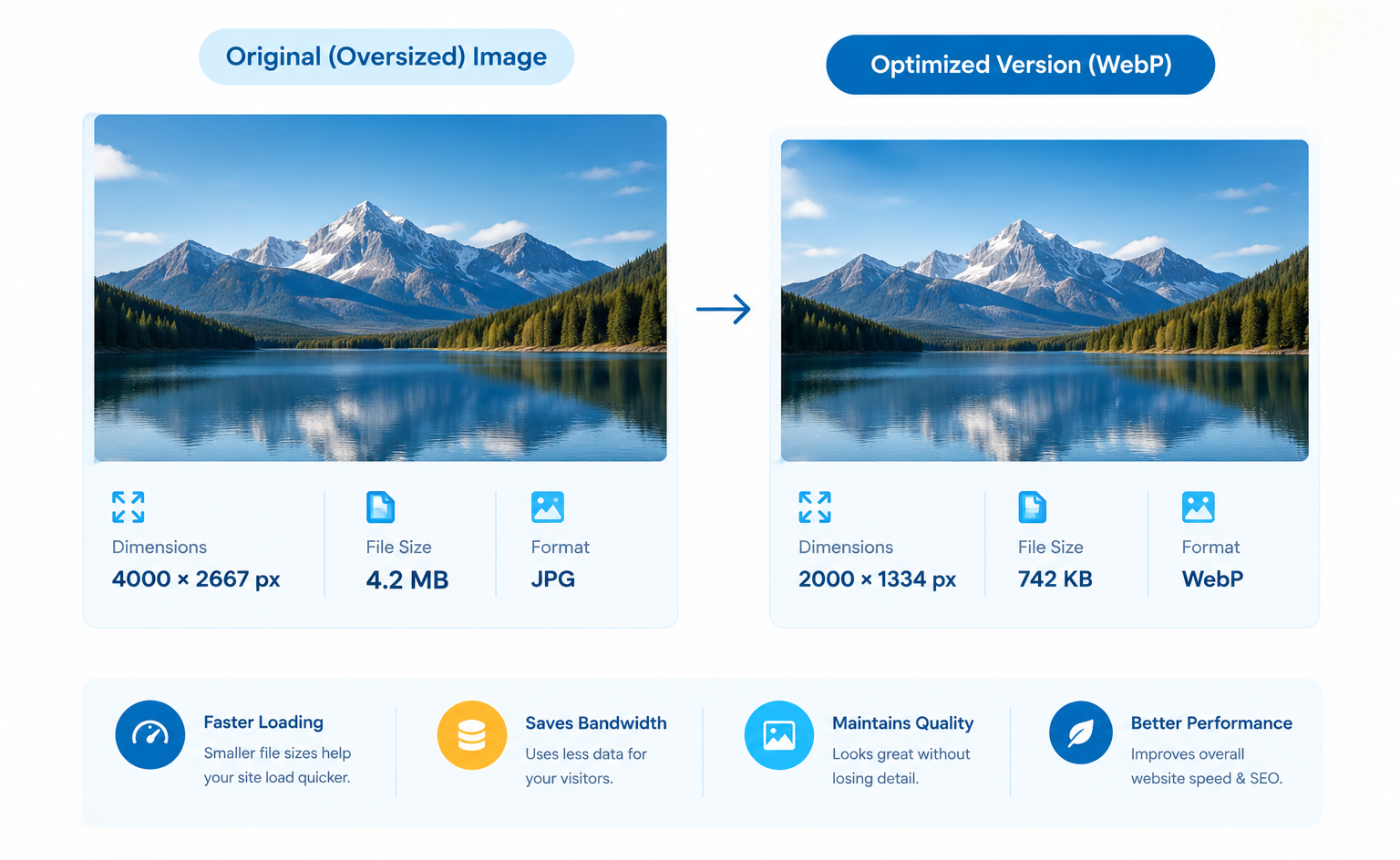
Image optimization is one of the simplest ways to reduce website load time because large image files can account for a substantial portion of the data a browser downloads. Compressing images, choosing appropriate dimensions, and using modern formats can make pages lighter without noticeably reducing visual quality.
Start by reviewing your homepage, landing pages, blog posts, and product pages. Hero banners, featured images, product galleries, and background images deserve particular attention because they can contribute significantly to the initial page weight.
Use WebP and AVIF Where Appropriate
Image optimization and WebP format conversion can reduce file sizes compared with many traditional image formats, depending on the source image and compression settings. AVIF is another option that can provide efficient compression for supported browsers.
For practical results:
- Resize images to match their actual display dimensions instead of uploading oversized originals.
- Convert suitable JPEG and PNG images to WebP or AVIF.
- Compress images before uploading them to WordPress.
- Use responsive images so browsers can select an appropriate size for different screens.
- Apply lazy loading to below the fold images, but avoid lazy loading the main above the fold or Largest Contentful Paint (LCP) image.
WordPress supports responsive images and native lazy loading, so many sites can benefit from these features without installing additional plugins.
For implementation guidance, consult the WordPress image optimization documentation.
2. Choose a Lightweight WordPress Theme and Remove Unnecessary Features
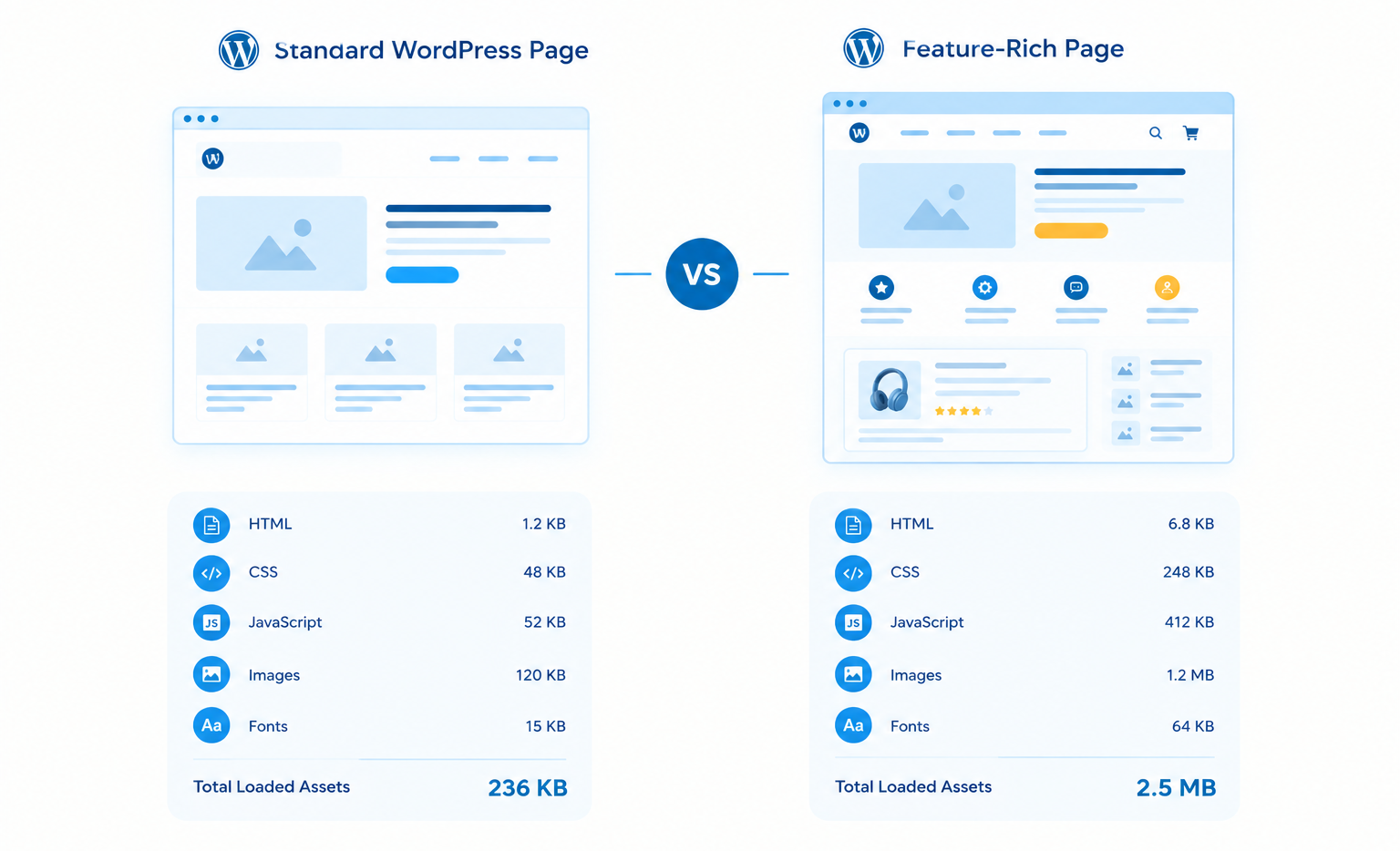
A lightweight WordPress theme can reduce the amount of CSS, JavaScript, markup, and other assets required to display a page. This gives the browser less work to do and can reduce the resources needed to deliver your website.
Not every feature rich theme is slow, and not every minimalist theme is fast. The important factors are how much code a theme loads, how efficiently it renders pages, and whether its features are actually necessary for your website.
Audit What Your Website Loads
Start by identifying features that add weight without providing meaningful value. Animated sliders, multiple icon libraries, decorative effects, and complex page builder elements can introduce additional requests and processing.
Check whether you can:
- Replace oversized sliders with a single optimized hero image.
- Remove unused widgets, animations, and theme modules.
- Use system fonts or a limited set of optimized font files.
- Eliminate redundant plugins that duplicate existing functionality.
- Avoid loading scripts and styles on pages that do not need them.
If you’re planning a redesign, consider lightweight WordPress themes and a simpler page structure before adding more optimization tools.
A well structured theme can also make ongoing website maintenance easier because fewer unnecessary components need updating, testing, and troubleshooting.
For help identifying inefficient layouts, scripts, and design components, explore WP Centric’s WordPress optimization services.
3. Reduce Unused CSS and JavaScript Through Smarter Asset Loading
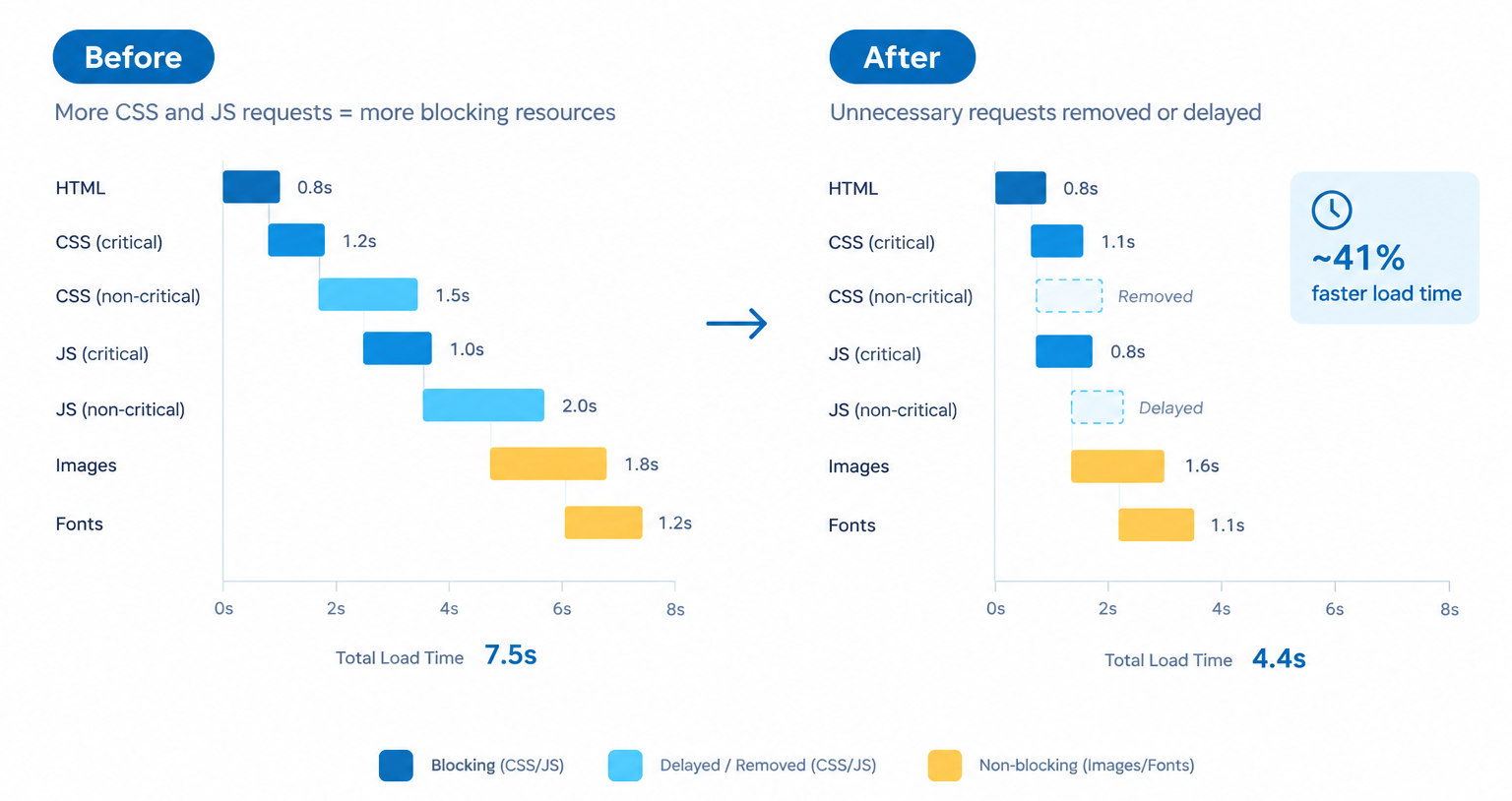
Reducing unnecessary CSS and JavaScript helps browsers render pages with less processing. Code minification removes unnecessary characters from source files, while removing unused code and controlling when scripts load can produce more meaningful performance improvements.
These techniques are related but different. Minification can reduce file size, but it does not automatically eliminate unused functionality or prevent scripts from blocking rendering.
Minify Code and Delay Non Critical Scripts
Start with a performance audit to identify large stylesheets, render blocking resources, and JavaScript that delays interaction. Then prioritize assets that affect the initial viewport and essential user actions.
Useful techniques include:
- Code minification: Remove unnecessary whitespace and comments from CSS and JavaScript files.
- Remove unused CSS: Reduce styles that are not needed on a particular page.
- Defer non critical JavaScript: Allow the browser to parse the HTML before executing scripts that do not need to run immediately.
- Delay non essential third party scripts: Load analytics, chat widgets, and marketing tools when appropriate.
- Load assets conditionally: Prevent plugin scripts from loading across the entire website when they are only needed on specific pages.
For example, a contact form plugin may only be required on your contact page. If its scripts load on every blog post and landing page, conditional asset loading can reduce unnecessary work.
Avoid applying every optimization setting at once. Minification, script deferral, and delayed execution can conflict with some plugins or interactive features, so test your website after each change.
For technical validation, use PageSpeed Insights and the web.dev guide to optimizing resource loading.
4. Improve Caching and Server Efficiency to Reduce Repeated Work
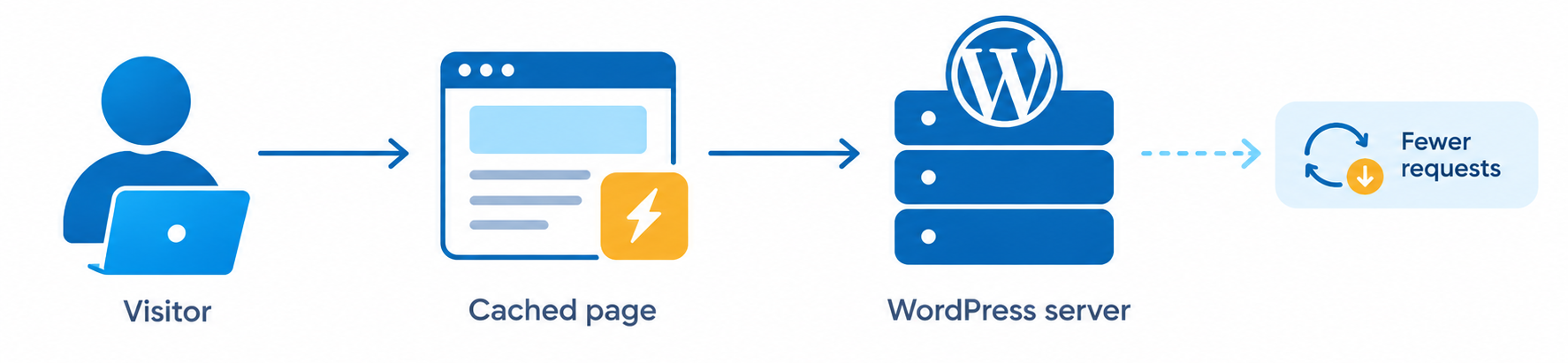
Caching improves WordPress performance by allowing frequently requested content to be served without repeating the same expensive processing every time. Depending on the caching layer, this can reduce PHP execution, database queries, server CPU usage, and response times.
Without effective caching, WordPress may repeatedly assemble the same page by executing PHP, retrieving database records, and processing plugins. Page caching can store the generated HTML and serve it again for subsequent visitors when the cached content remains valid.
Apply the Right Caching Strategy
Different caching methods solve different problems. A combination of suitable caching layers can improve performance without unnecessarily increasing infrastructure complexity.
| Caching method | What it does | Potential performance benefit |
|---|---|---|
| Page caching | Stores generated HTML pages | Reduces repeated PHP and database work |
| Browser caching | Stores eligible assets on visitors’ devices | Reduces repeat downloads |
| Object caching | Reuses database query results and other objects | Can reduce repeated database operations |
| CDN caching | Serves eligible content from distributed locations | Can reduce latency and origin-server requests |
Start with page caching for eligible public pages, configure sensible browser cache headers for static assets, and consider a content delivery network (CDN) if your audience is geographically distributed.
Object caching can be especially useful for dynamic or database intensive websites, including larger WooCommerce stores. However, logged in sessions, personalized pages, shopping carts, and checkout flows require careful caching rules to avoid serving the wrong content.
Caching can also support greener website operations by reducing repeated processing and data transfers. The actual energy savings depend on your hosting environment, traffic patterns, cache hit rate, and implementation.
If your site still responds slowly after caching is configured, investigate server response time, PHP performance, database queries, and hosting capacity instead of simply installing another plugin.
Explore WP Centric’s WordPress maintenance services for opportunities to keep performance, updates, and technical reliability under control.
5. Clean Up the Database and Reduce Unnecessary Background Processing
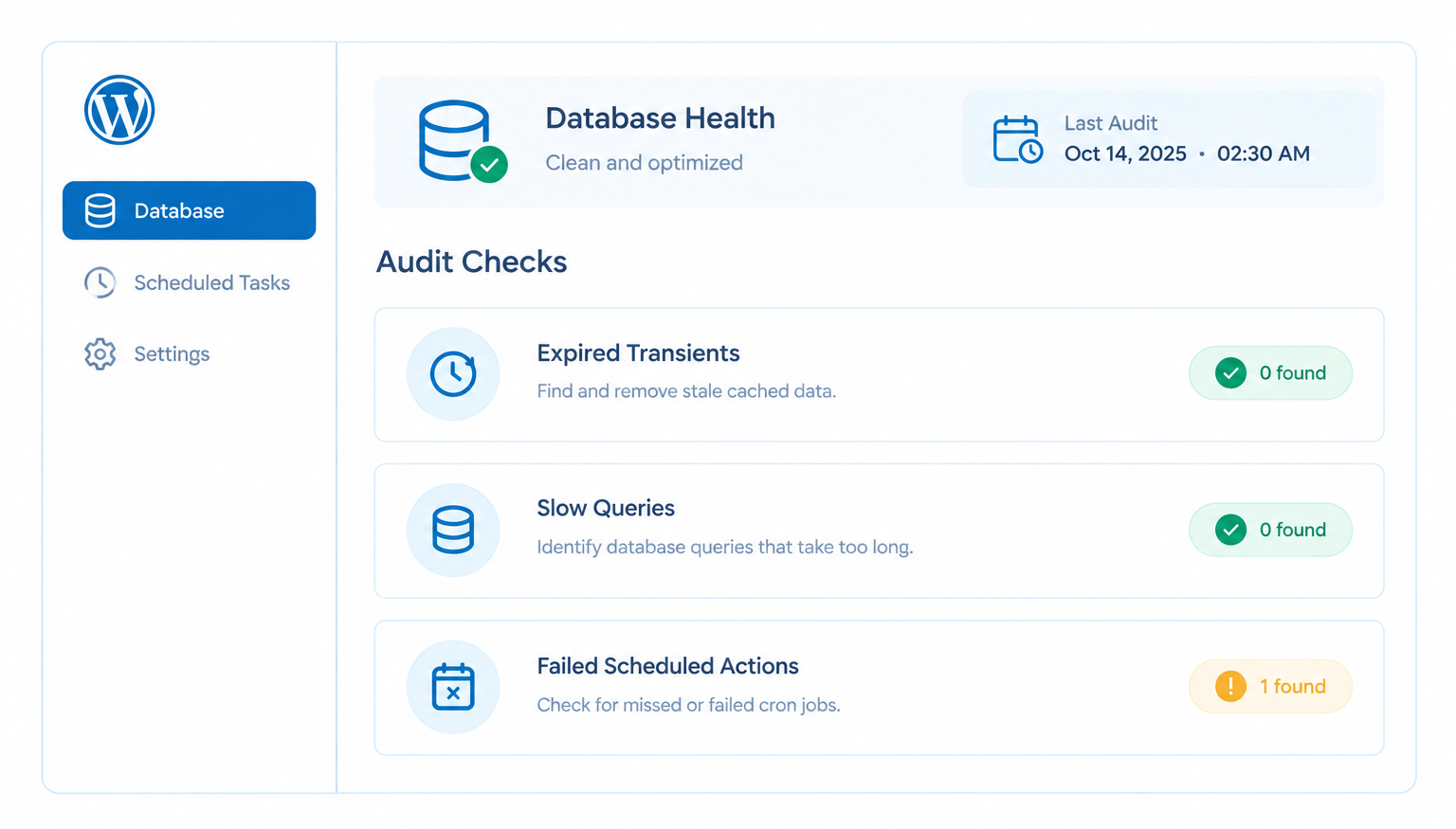
Database cleanup and background task management can improve WordPress performance when they target genuine sources of overhead. Old transient records, excessive revisions, expired temporary data, inefficient queries, and unnecessary scheduled tasks can all contribute to avoidable work in some installations.
However, database cleanup is not a substitute for fixing poorly written queries or inadequate hosting. Removing records indiscriminately can also damage functionality, so identify the underlying issue before deleting data.
Focus on Safe, Targeted Cleanup
A practical WordPress website health check should include an assessment of database efficiency and background processing, especially if the site has many plugins or handles frequent transactions.
Prioritize these tasks:
- Review post revisions, spam comments, and trashed content before removing records you no longer need.
- Identify expired transients and use supported WordPress or plugin tools to manage temporary data.
- Inspect database tables left behind by uninstalled plugins before deciding whether they are safe to remove.
- Check scheduled actions for repeated failures, unexpected backlogs, and tasks that run more frequently than necessary.
- Investigate slow database queries and excessive plugin activity rather than relying solely on routine cleanup.
For WooCommerce websites, scheduled actions may support order processing, subscription renewals, emails, and other important operations. Do not delete pending tasks simply to reduce their number; determine why they are accumulating and resolve the cause.
You can also review the official WordPress database optimization guidance and the WordPress cron documentation before changing database or scheduling behavior.
How to Measure the Results of WordPress Performance Optimization
Measure performance before and after each significant change to determine whether it improves real loading behavior. A website can score well in one test while still delivering a poor experience to users on slower devices or mobile networks.
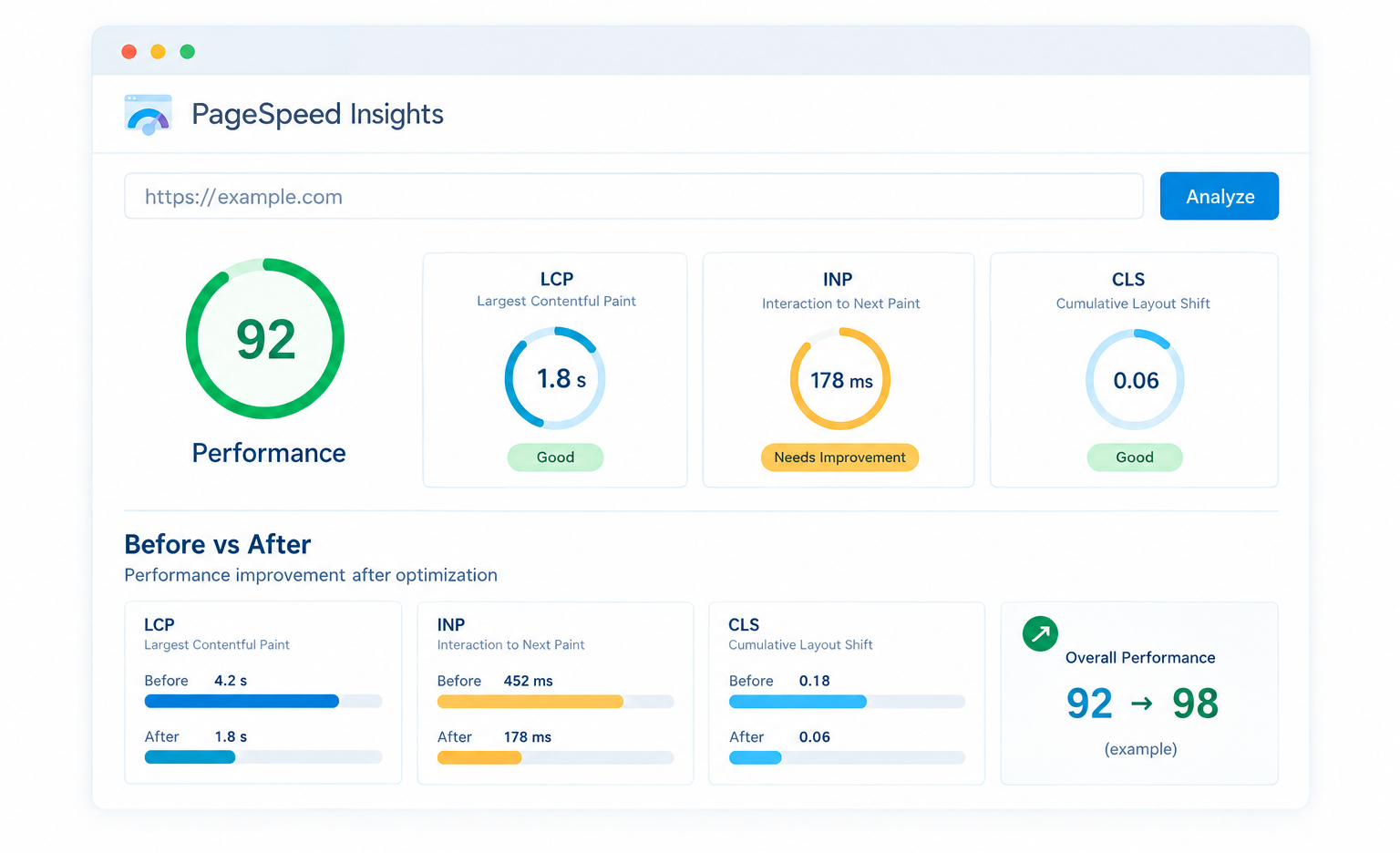
Use PageSpeed Insights to review both laboratory diagnostics and available real user data. For field performance, Google’s Core Web Vitals provide useful indicators of loading speed, responsiveness, and visual stability.
| Metric | What it measures | Good target |
|---|---|---|
| Largest Contentful Paint (LCP) | Loading performance | 2.5 seconds or less |
| Interaction to Next Paint (INP) | Responsiveness | 200 milliseconds or less |
| Cumulative Layout Shift (CLS) | Visual stability | 0.1 or less |
These thresholds apply at the 75th percentile of page visits, assessed separately for mobile and desktop. See Google’s official Core Web Vitals guidance for definitions and measurement details.
After implementing your changes, check the same URLs under comparable testing conditions. Review image weight, total transferred bytes, request count, server response time, and unused assets alongside the Core Web Vitals metrics.
Use a Repeatable Performance Testing Process
- Record the baseline: Test key pages before making changes.
- Identify the bottleneck: Determine whether images, scripts, server response, or database activity is responsible.
- Apply one meaningful change: Avoid changing several unrelated settings simultaneously.
- Test functionality: Check navigation, forms, login, search, and WooCommerce checkout where applicable.
- Measure again: Compare results and retain changes that improve performance without breaking essential features.
PageSpeed Insights is a useful starting point, but it should not be the only measurement tool. Browser developer tools, server logs, and application level monitoring can help explain why a particular page remains slow.
How Website Speed Optimization Supports a Greener WordPress Website
A greener WordPress website avoids unnecessary digital work by transferring less data, processing fewer redundant requests, and using infrastructure more efficiently. Optimizing performance can contribute to these goals, although a faster website does not automatically prove that its total carbon emissions have decreased.
The environmental impact of a website depends on several factors, including the electricity used by servers and network infrastructure, visitors’ devices, traffic volume, hosting efficiency, and the energy mix powering those systems.
Make Sustainability Part of Performance Decisions
Instead of adding sustainability features that increase page weight, start by reducing waste in the existing website.
For example, a smaller image can reduce transferred data, a well configured cache can prevent repeated server side rendering, and fewer third party scripts can reduce unnecessary browser processing. These changes may improve user experience and resource efficiency at the same time.
Consider these principles when planning future website updates:
- Prefer lightweight design and functionality over decorative features that offer little value.
- Reduce unnecessary third party requests and external dependencies.
- Optimize images, fonts, and videos according to their actual purpose.
- Choose hosting that provides transparent information about energy efficiency and renewable electricity where available.
- Reassess performance after adding new plugins, tracking scripts, or page builder components.
Sustainable web design should be an ongoing practice rather than a one time optimization project. Regular performance reviews help prevent new features from gradually increasing page weight and operational overhead.
Frequently Asked Questions
The most effective change depends on the website’s main bottleneck. Image compression, caching, reduced JavaScript execution, and better hosting can all improve performance, but testing should determine which fix offers the greatest benefit.
WordPress performance optimization can reduce unnecessary data transfers and server processing, which may support lower energy consumption. However, the actual reduction in carbon emissions depends on the hosting infrastructure, traffic, devices, electricity sources, and other factors.
PageSpeed Insights is a useful starting point because it reports performance diagnostics and, when available, real user Core Web Vitals data. Browser developer tools and server monitoring can provide additional information about network requests, JavaScript, response times, and database performance.
No. WordPress includes features such as responsive images, and many hosting providers offer built in caching. Use plugins when they provide a necessary capability, and avoid installing multiple tools that perform the same task.
Review performance after significant theme, plugin, hosting, or design changes, and schedule regular checks based on your site’s complexity and traffic. Stores and websites with frequent updates may need more frequent monitoring than small, mostly static websites.
Key Takeaways
- Optimize images: Compress images, use WebP or AVIF, and serve appropriately sized files to reduce page weight.
- Choose a lightweight theme: Remove unnecessary design features, plugins, fonts, and scripts that add extra processing.
- Reduce unused code: Minify CSS and JavaScript, remove unnecessary assets, and defer non critical scripts.
- Enable effective caching: Use page, browser, object, or CDN caching where appropriate to reduce repeated processing and data transfers.
- Clean up database operations: Remove unnecessary data safely and investigate inefficient queries and failed scheduled tasks.
- Measure performance: Use PageSpeed Insights and Core Web Vitals to evaluate loading speed, responsiveness, and visual stability.
- Prioritize sustainability: Reduce unnecessary website activity and choose efficient hosting, while recognizing that actual carbon savings depend on the wider infrastructure and energy sources.
Build a Faster, More Resource Efficient WordPress Website
A faster, greener WordPress website starts with five practical improvements: optimize images, remove unnecessary theme features, reduce unused code, configure caching, and clean up inefficient database operations and background tasks.
The best results come from measuring the actual bottlenecks, applying targeted changes, and checking that essential website features continue to work. This approach makes WordPress performance optimization an ongoing part of website maintenance rather than a series of temporary fixes.
Ready for a Faster, Greener WordPress Website?
Improve website speed, Core Web Vitals, and resource efficiency with expert WordPress performance optimization from WP Centric.