

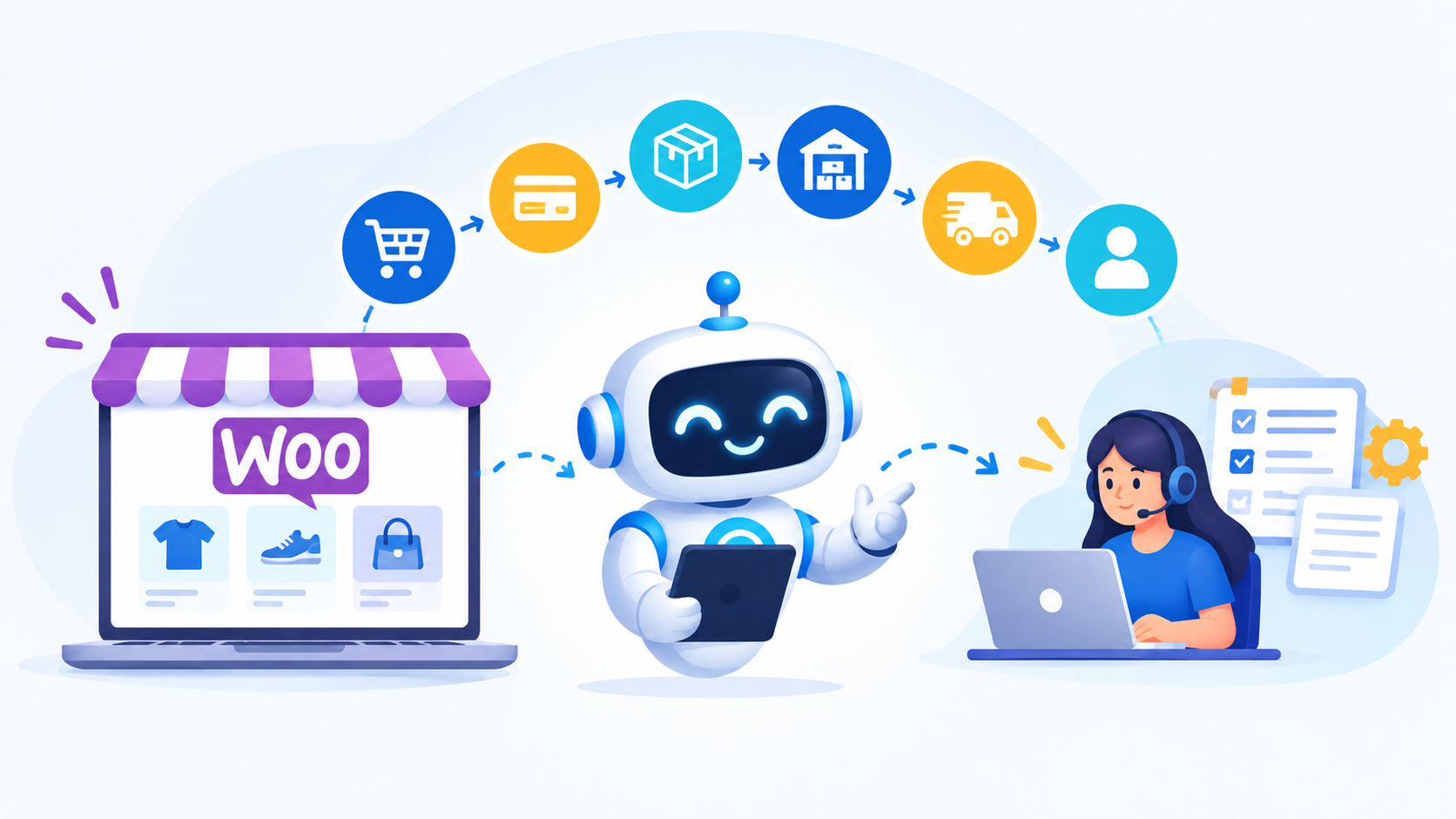
If your WooCommerce store is already working but your team is still spending hours updating orders, checking stock, moving information between systems, sending repetitive emails, or preparing the same reports every week, the problem may not be your store. It may be the amount of manual work happening behind it.
The best WooCommerce automation opportunities are usually tasks that happen frequently, follow predictable rules, and do not require someone to make a decision every time. That can include order processing, inventory synchronization, customer notifications, reporting, product updates, and connections with external systems.
You also do not need to automate everything at once. Start with one repetitive workflow, make sure it works reliably, and then build from there.
Quick Answer
WooCommerce automation works best for repetitive, rule based tasks such as order processing, inventory updates, customer notifications, reporting, and abandoned cart follow ups. Start with the tasks your team repeats most often, automate workflows with clear rules, and keep human review for exceptions or decisions that require judgment.
Your WooCommerce Store May Be Working. Your Workflow Might Not Be.
A WooCommerce store can look completely normal to the customer while the team behind it is doing dozens of things manually.
A customer places an order. Someone checks whether the payment went through. Another person updates the order or sends the details to fulfillment. Someone checks inventory in another system. Later, someone exports orders for accounting. Customer support then answers emails that could have been handled automatically.
None of these tasks are particularly difficult.
The problem is that they keep coming back.
One manual task may take only a few minutes. Multiply that by dozens or hundreds of orders, products, customers, or weekly reports, and the amount of time becomes much more significant.
This is where WooCommerce automation becomes useful. The goal is not to make the entire store run without people. It is to remove repetitive work that does not need human attention every time it happens.
What Should Actually Be Automated?
A useful way to find automation opportunities is to stop looking at individual clicks and look at the entire workflow.
For example, imagine what happens after a customer places an order:
Order placed → Payment confirmed → Order updated → Inventory changed → Fulfillment notified → Customer updated
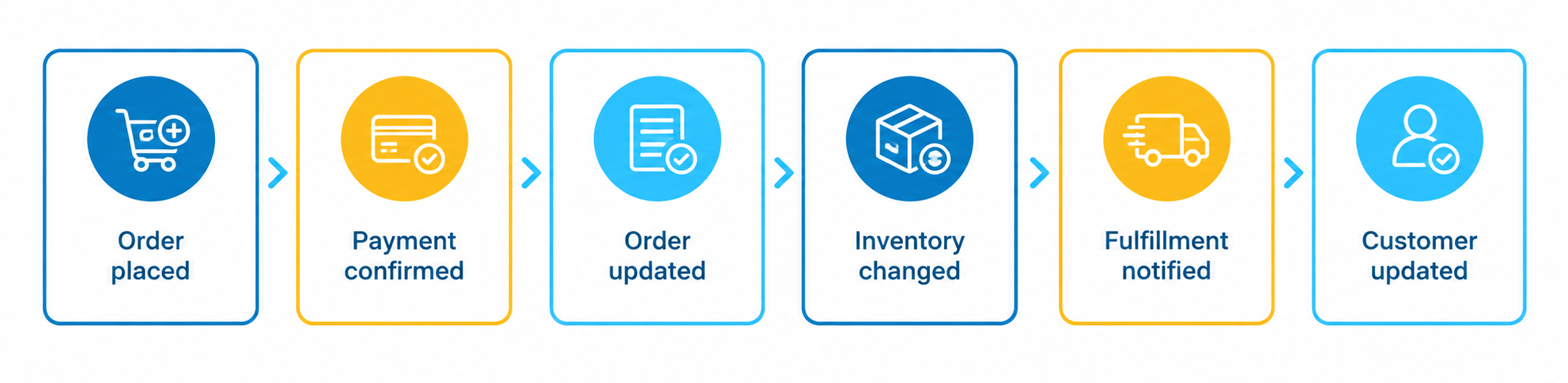
If a person is manually moving information through every one of those steps, there is probably room for improvement.
Look for Repetition Before Looking for Plugins
The first step should not be searching for the “best WooCommerce automation plugin.”
Instead, identify the work your team repeats.
Ask:
- Does this happen every day or every week?
- Does it follow the same rules each time?
- Does someone have to copy the same information somewhere else?
- Does someone have to remember to perform the task?
- Would an error in the automation be easy to detect and correct?
If the answer to most of these questions is yes, the process is worth investigating.
A plugin might solve it. An integration might be better. In some cases, custom development may be the more sensible option.
1. Start With Order Processing
Order processing is often one of the easiest places to find repetitive work.
WooCommerce already handles many parts of the order lifecycle, but stores frequently add their own steps around it. With WooCommerce automation, an order may be assigned to a particular team, sent to a fulfillment platform, marked with internal information, or forwarded to another system after payment.
What Can Be Automated?
A typical workflow might look like this:
- Customer places the order.
- Payment is confirmed.
- The order status changes.
- Inventory is updated.
- Order information is sent to fulfillment.
- The customer receives the appropriate notification.
The important part is that not every step has to be automated.
For example, automatically sending an order to a fulfillment system may make sense. Automatically approving an unusual high value order may not.
WooCommerce uses scheduled actions to handle background tasks such as order notifications and payment related processing, and while these background tasks run seamlessly under the hood, tracking raw system logs can become complex. When custom workflows delay or fail, having a specialized WordPress development team audit these actions ensures your automation pipeline stays unblocked.
When Order Automation Becomes More Complex
Things get more interesting when the store has different rules for different orders.
A business might have one fulfillment process for regular products, another for custom products, and another for wholesale customers. At that point, simply changing an order status is not enough.
This is where custom WooCommerce logic can become useful.
For stores with workflows like these, WooCommerce development services can be used to build integrations and functionality around the store’s actual order process instead of forcing the business to work around a generic plugin.
2. Stop Checking Inventory in Multiple Places
Inventory is another area where manual work can quietly consume a lot of time.
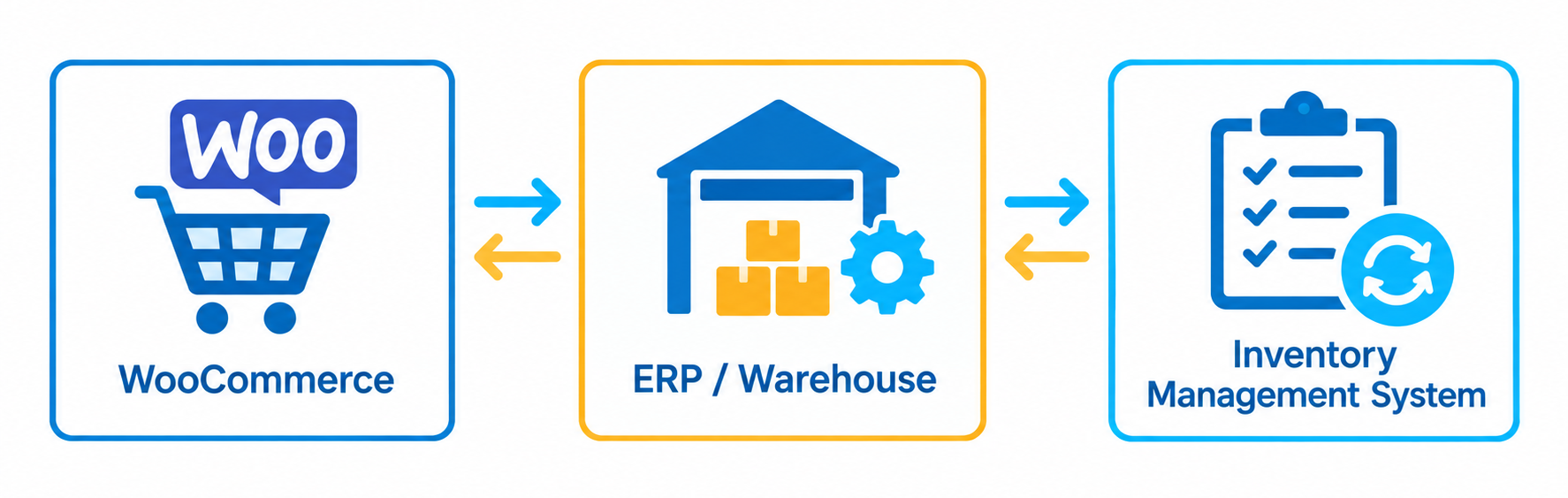
A WooCommerce store might not be the only place where stock information exists. The business may also use an ERP, warehouse management system, POS, supplier platform, or internal application.
Now imagine a product sells on the website.
Someone has to make sure the stock is reflected everywhere else.
That is not really a difficult task. It is simply a repetitive one.
Decide Which System Is the Source of Truth
Before trying to automate inventory, there is an important question to answer:
Which system should actually control the stock quantity?
If WooCommerce is the source of truth, another system may need to receive updates from WooCommerce.
If an ERP controls inventory, WooCommerce may need to receive stock updates from that system instead.
Trying to synchronize everything with everything else can create more problems than it solves.
The integration should have a clear direction and rules for what happens when systems disagree.
For more complex stores, WooCommerce can communicate with external platforms through APIs and webhooks. WooCommerce webhooks can send event notifications to an external URL when supported store events occur, which makes them useful for connecting WooCommerce with third party systems.
3. Automate the Customer Emails Your Team Keeps Sending
Customer communication is another common source of repetitive work.
Customers naturally want updates about their orders, but your support team should not have to manually send the same information over and over.
WooCommerce already provides built in email notifications for common store events. WooCommerce automation can also extend those workflows when the store needs more specific communication.
Think Beyond the Standard Order Email
A store might need to send a message when:
- An order is received.
- Payment has been confirmed.
- An order is shipped.
- An order is delayed.
- Additional information is required.
- A product becomes available again.
- A customer needs a follow up after delivery.
The important distinction is between communication that follows a rule and communication that requires a person to understand the customer’s situation.
A shipping confirmation can usually follow a predictable rule.
A response to an angry customer probably should not.
For more advanced customer workflows, WooCommerce’s automation tools can schedule actions based on events or timing, allowing businesses to build follow ups without manually managing every message.
4. Your Weekly Report Probably Shouldn’t Be a Weekly Task
Reporting is one of those jobs that businesses often accept as “just part of running the store.”
Every week, someone exports the orders.
Then the spreadsheet gets cleaned up.
Next, the data is filtered.
Finally, another person prepares the final report.
If the same report is produced every week, there is a good chance the process can be simplified.
Automate the Data, Not Just the Spreadsheet
A useful automated reporting workflow might collect:
- Sales
- Orders
- Refunds
- Product performance
- Inventory levels
- Customer activity
- Fulfillment data
The goal isn’t necessarily to create a complicated dashboard.
Sometimes the better solution is simply to have the required information exported in the correct format and delivered to the right person automatically.
That can turn a recurring administrative task into a background process.
5. Product Management Can Become a Hidden Automation Problem
Product management becomes more complicated as a catalog grows.
Adding a handful of products manually is easy.
Maintaining hundreds or thousands of products across WooCommerce and other systems is different.
Prices may come from a supplier. Product descriptions may come from another system. Stock may come from an ERP. Product categories may need to follow internal rules.
Now the team isn’t really managing products anymore.
They’re managing data movement.
Look for Repeated Product Updates
If the same product information is repeatedly copied between systems, consider whether the systems can exchange that information automatically.
For example, a supplier could provide updated product data that is imported into WooCommerce on a schedule instead of requiring someone to download the file and update the catalog manually.
The exact implementation depends on the source system, data format, update frequency, and business rules.
If the required workflow involves custom product logic, pricing rules, checkout behavior, or third party integrations, WooCommerce Customization can provide more control than trying to combine several unrelated plugins.
6. What About Abandoned Carts?
Abandoned cart recovery is another process that can be automated because the trigger is relatively clear.
A customer adds products to the cart, leaves the site, and does not complete the purchase.
Instead of having someone manually identify those customers, an automation workflow can detect the event and trigger a follow up based on the store’s rules.
The important part is deciding what should happen after the trigger.
For example, should the customer receive one reminder or several? Should customers who already purchased be excluded? Should a discount be offered, or should the first message simply remind them about the cart?
The automation is easy to start. Designing the rules correctly is the more important part.
7. WooCommerce Automation Doesn’t Always Mean Adding Another Plugin
This is where many WooCommerce stores can go in the wrong direction.
A business identifies a manual task, searches for a plugin, installs it, then discovers another part of the workflow needs a different plugin.
Eventually, the store has several plugins handling small parts of one process.
Sometimes that is perfectly fine.
Sometimes it creates a workflow that nobody fully understands.
When an Existing Plugin Makes Sense
A plugin is usually worth considering when the requirement is common and the workflow is straightforward.
For example:
- Standard email automation
- Basic abandoned cart recovery
- Scheduled imports or exports
- Simple reporting
- Common shipping workflows
- Standard inventory functionality
Popular, standard tools like AutomateWoo, Uncanny Automator, or Zapier for WooCommerce are excellent choices for these types of straightforward, rule based workflows.
There is no benefit in building custom code simply because you can.
When the Workflow Needs More Than a Plugin
Custom development becomes more relevant when the store has business rules that existing plugins do not understand.
For example, a store may need to:
- Send different orders to different fulfillment systems.
- Apply different rules based on customer type.
- Synchronize WooCommerce with a custom ERP.
- Update several systems after one WooCommerce event.
- Apply custom pricing or approval rules.
- Combine multiple automation steps into one workflow.
In those cases, adding another plugin may only solve one piece of the problem.
A custom plugin or integration can instead be built around the actual workflow. WP Centric’s WordPress Plugin Development Services include custom automation tools, third party integrations, and eCommerce functionality designed around specific business requirements.
8. Don’t Forget the Part Nobody Talks About: Failed Automation
Automation is only useful when you can trust it.
Suppose an automated inventory update fails overnight.
The store may continue accepting orders even though the external inventory system was never updated.
Or a webhook fails to reach another system.
Or a scheduled task remains pending.
The problem is no longer that a task was manual.
The problem is that the business assumed the automation had worked.
Automation Needs Visibility
While WooCommerce provides default tools to inspect background tasks, webhook activity, and Scheduled Actions logs, checking them manually defeats the purpose of automation. A truly reliable setup uses custom error handling code to instantly trigger an alert (via email or Slack) the moment a sync fails, ensuring your team can step in immediately before orders pile up.
That means automation should not simply be:
Trigger → Action
It should ideally be:
Trigger → Action → Confirmation → Error handling
This is particularly important when automation affects orders, payments, inventory, or customer communication.
If something goes wrong, the team should have a way to know about it.
9. A Better Way to Introduce Automation Into a WooCommerce Store
Trying to automate the entire store in one project is usually unnecessary.
A better approach is to start with one workflow that causes a noticeable amount of repetitive work.
Step 1: Find the Repetition
Write down what your team does repeatedly during a normal week.
Don’t start with plugins. Start with the work.
Step 2: Map the Current Process
Document what happens from the beginning of the task to the end.
This often reveals unnecessary steps that should be removed before anything is automated.
Step 3: Separate Rules From Decisions
If something happens the same way every time, it may be a good automation candidate.
If someone needs to evaluate the situation before deciding what happens next, keep that part manual.
Step 4: Choose the Simplest Reliable Solution
Use an existing WooCommerce feature or plugin when it handles the requirement properly.
An integration when another system needs to exchange data with WooCommerce.
Use custom development when the workflow requires business specific logic that existing tools cannot reliably handle.
Step 5: Monitor It
Don’t assume an automation is working simply because it was configured once.
Check whether tasks are actually running, data is reaching the destination, and failures are visible.
A Simple Example: From Manual Order Handling to Automation
Consider a store where a team member currently handles every new order manually.
They check the payment, update the order, copy the order details into another system, check stock, and send a message to fulfillment.
That workflow might eventually look like this:
- Step 1: Customer places order – The checkout process is initiated on your storefront.
- Step 2: Payment confirmed – The payment gateway processes and secures the funds.
- Step 3: WooCommerce updates order – The core store system shifts the order status smoothly.
- Step 4: Inventory system receives information – Stock levels are synchronized across your systems instantly.
- Step 5: Fulfillment system receives the order – The warehouse app prepares the package for delivery.
- Step 6: Customer receives notification – An automated email or SMS tracking link is generated and sent.
- Step 7: Exception review – If any step in this pipeline fails, the system bypasses the loop and instantly flags a human team member to review the issue.
The important part is the final step.
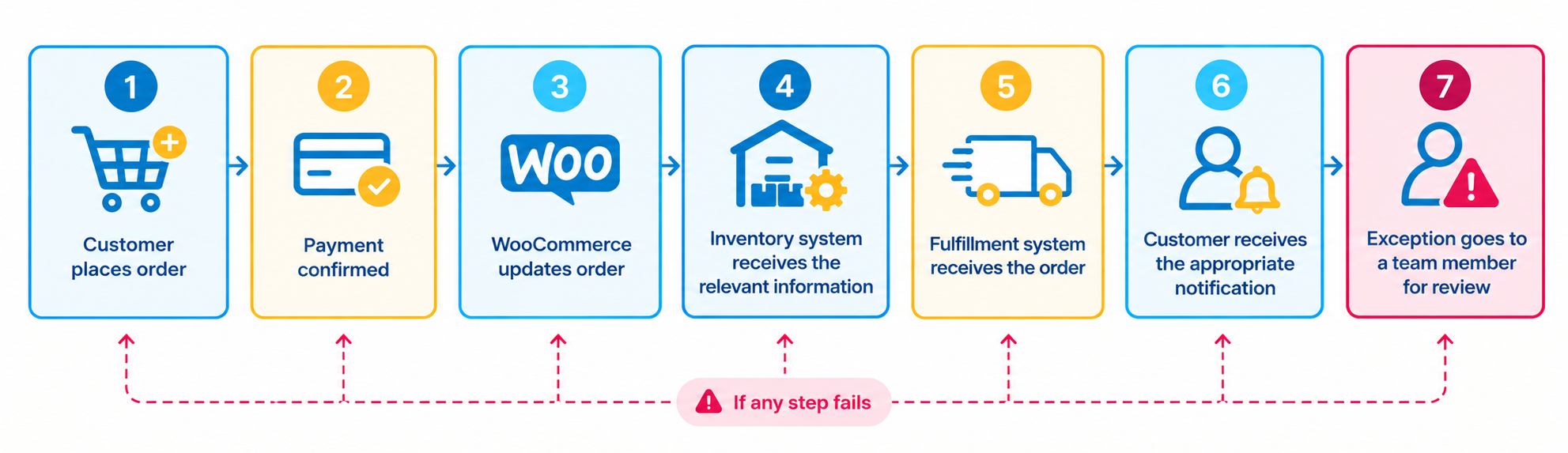
Good automation does not mean removing people from every process. It means allowing the system to handle predictable work and bringing a person in when something actually requires attention.
What Should You Not Automate?
More automation is not automatically better.
Some decisions should remain with people, particularly when the outcome depends on context that a predefined rule cannot understand.
For example, you may not want to automatically approve:
- Unusual high value orders
- Complicated refunds
- Customer disputes
- Fraud related decisions
- Special pricing requests
- Orders requiring manual verification
The objective is not to remove every human step.
The objective is to make sure human attention is being used where it actually adds value.
How Much of Your WooCommerce Store Can You Automate?
There isn’t a useful percentage that applies to every store.
A business selling standardized products with a straightforward fulfillment process may be able to automate a large portion of its routine operations.
A business selling customized products, working with several suppliers, or using multiple external systems may need people involved at several points.
The right question isn’t:
“How much can we automate?”
It is:
“Which manual work is costing us time without adding value?”
That question usually leads to a much better automation strategy.
FAQs
What WooCommerce tasks can be automated?
Common opportunities include order processing, inventory synchronization, customer notifications, reporting, product management, abandoned cart follow ups, scheduled imports and exports, and integrations with external systems.
How do I automate WooCommerce order processing?
Start by mapping what happens after an order is placed. Identify predictable steps such as status changes, notifications, inventory updates, and fulfillment actions. Then determine whether an existing WooCommerce feature, plugin, integration, or custom development is the appropriate solution.
Can WooCommerce automate inventory updates?
Yes. WooCommerce can exchange information with external systems through integrations, APIs, and webhooks. The important part is deciding which system is responsible for inventory and how updates should be handled when systems disagree.
What is the best WooCommerce automation plugin?
There isn’t one plugin that is right for every store. The appropriate solution depends on the workflow, the systems involved, and how much customization the business requires. A standard workflow may be handled by an existing extension, while a complex integration may require custom development.
When should I use custom WooCommerce development?
Custom development makes more sense when your automation involves custom business rules, multiple systems, a custom ERP, unusual order workflows, or functionality that existing plugins cannot reliably provide.
Key Takeaways
- Automate repetitive tasks first: Order processing, inventory updates, customer notifications, reporting, and product management are strong candidates.
- Start with one workflow: Identify a frequent manual task, automate it, test it, and then expand.
- Choose the right approach: A plugin may handle simple workflows, while integrations or custom development may be better for complex processes.
- Keep humans involved where needed: Automation sh ould handle predictable tasks while exceptions and important decisions remain with your team.
- Monitor your automations: Failed actions, webhook errors, and synchronization problems need to be visible so they can be fixed quickly.
- The goal is less manual work, not less control: Good WooCommerce automation makes your team more efficient without making your store harder to manage.
Conclusion
A WooCommerce store does not become more efficient simply because it has more plugins or more automation rules.
The real opportunity is to identify the repetitive work happening behind the store and decide which parts genuinely need human attention.
Start with the workflows your team repeats most often. Map them, remove unnecessary steps, automate the predictable parts, and make sure there is a way to detect failures.
For some stores, an existing plugin will be enough. For others, connecting WooCommerce to an ERP, CRM, fulfillment platform, or internal system will require an integration or custom development.
The best automation is not the one that makes the most things happen automatically. It is the one that quietly removes work your team should never have been doing manually in the first place.
Need Help Automating
Your WooCommerce Workflow?
If your WooCommerce team is spending too much time on repetitive processes, WP Centric can help you identify where an existing solution is enough and where WooCommerce Development Services can be used to build a more tailored workflow.