

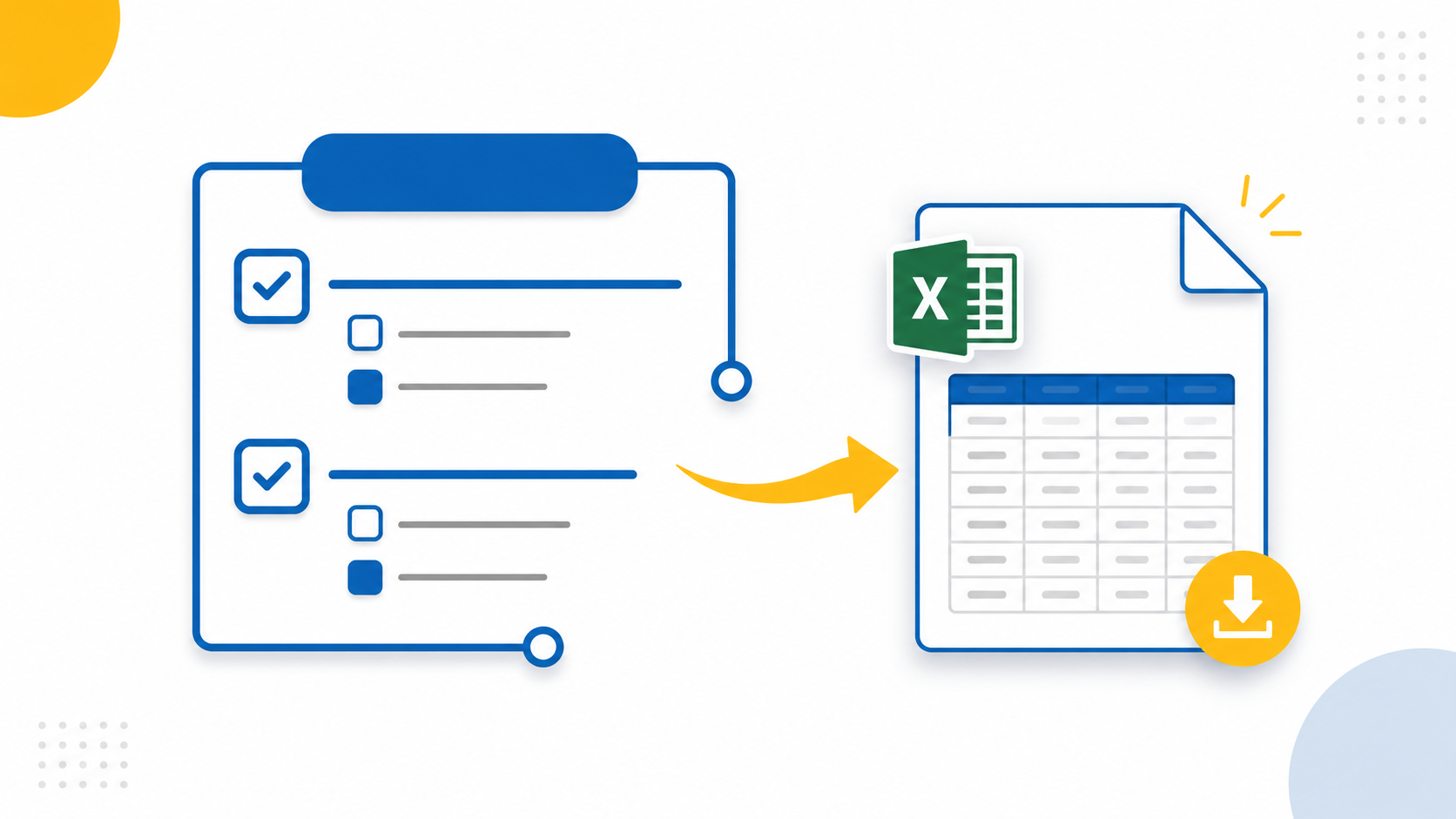
To export LearnDash quiz results, go to LearnDash LMS → Reports → Quiz Data and click Export. This native option gives you a basic CSV with student names, scores, and completion dates. If you need more full question text, individual answers, correct/incorrect breakdowns, or exports filtered by a specific date range you’ll need a reporting add-on, since LearnDash’s built-in export doesn’t capture answer-level detail.
This guide covers what’s actually available in 2026: the native LearnDash export and dedicated quiz export addons plus how to pick the right one for what you’re actually trying to measure.
What Does “Exporting LearnDash Quiz Results” Actually Mean?
Exporting LearnDash quiz results means pulling learner quiz data out of your WordPress database and into a usable file format typically CSV or Excel, so you can analyze, share, or archive it outside the LMS dashboard.
Basic Scores vs. Full Answer Data
Depending on the tool you use, a LearnDash quiz report export can include anything from basic pass/fail scores to granular, question by question answer data: what each learner selected, how many people got a question wrong, and how long they spent on the quiz. The native LearnDash export sits at the basic end of that spectrum; a dedicated export add-on sits at the detailed end.
Why Exporting Quiz Data Matters for Course Creators
Quiz data only becomes useful once it leaves the dashboard and you analyze it. Left inside LearnDash’s admin screens, it tells you almost nothing about why students are struggling just that some of them are.
What the Research Says About Data Driven Course Improvement
This isn’t just a LearnDash specific observation. A systematic review published in Educational Technology Research and Development found that learning analytics are consistently use to predict course completion, grades, and dropout risk but only when institutions actually structure and review the underlying data rather than letting it sit unused. Separately, EDUCAUSE research found that institutions using learning analytics to flag at-risk students saw measurable retention gains once they paired that data with real intervention.
Spotting Confusing Questions Before They Hurt Completion Rates
For a self hosted LearnDash site, that translates into a very practical habit: export your quiz results regularly, and actually look at which questions students get wrong most often. A question with a high incorrect count usually points to a confusing lesson, not a difficult concept and you can only catch that pattern if the underlying answer data is exportable in the first place.
Method 1: LearnDash’s Native Quiz Data Export
LearnDash includes a built in Quiz Data export under LearnDash LMS → Reports, and it’s the fastest way to get a basic CSV of learner scores.
According to LearnDash’s own documentation, the native Quiz Data report shows each student’s quiz scores, the date they took the quiz, and whether they passed and you can export it directly from the Reports menu. Group Leaders can export the same data scoped to their own groups from the Group Administration page.
Where the Native Export Falls Short
The built in export is reliable for pass/fail tracking, but it stops there it doesn’t include the actual question text, what each learner selected, or a breakdown of correct versus incorrect answers per question. If you want to see which answer a student chose on question 4, the native export can’t tell you.
There’s also a known technical issue worth flagging: LearnDash support notes that if your hosting environment runs object caching, quiz and course exports can fail to generate at all, requiring the host to disable it before reports will run.
Method 2: Export Full Quiz Answers with a Dedicated Export Add-on
If you need the actual question and answer data not just scores a quiz export addon is the practical fix, since developers built it specifically to fill that gap in LearnDash’s native reporting.
This is where a tool like Export Quizzes & Answers for LearnDash becomes useful. Instead of just a score and a date, the export includes the full question text, points scored, correct answer count, incorrect answer count, the correct answer itself, and exactly what the learner answered side by side, per question, in a clean Excel file. For anyone auditing quiz content or checking for confusing questions, that level of detail is the difference between guessing and knowing.
Filtering Exports by a Specific Date Range
A recurring pain point for admins running cohort based or time boxed courses is pulling results for just one period say, only this month’s intake, or only a specific exam window without manually sorting through every historical submission.
This is a case where a learndash export quiz results add on with built in date filtering saves real time: you set a start and end date, click export, and get a spreadsheet, rather than exporting everything and filtering it yourself afterward in Excel.
When a One Time Export Isn’t Enough
If you’re pulling quiz results regularly say, weekly or after every cohort it’s worth setting a routine rather than exporting on an ad hoc basis. Running the same export at a consistent interval (e.g., the last day of each module) makes it much easier to spot trends over time, like a question that keeps tripping up new students long after you thought you’d fixed the lesson.
How to Choose the Right LearnDash Quiz Export Method
The right choice comes down to one question: do you need scores, or do you need answers?
| Need | Best Option |
|---|---|
| Basic pass/fail and score tracking | Native LearnDash export |
| Full question and answer detail per learner | Dedicated quiz export addon |
| Date range filtered quiz reports | Quiz export addon with date filters |
| Recurring exports across cohorts or modules | Quiz export addon used on a set schedule |
If you manage a small course and just need to confirm who passed, the native export is enough. If you’re reviewing quiz quality, resolving a grade dispute, or reporting results to a client or stakeholder, you need the full answer-level export a plugin like Export Quizzes & Answers for LearnDash provides — the native tool simply doesn’t surface that data.
Exporting LearnDash Quiz Results for a Date Range
Here’s the general workflow once you’ve installed a quiz export addon with date filtering:
- Open the plugin’s export screen from your WordPress dashboard.
- Select the specific quiz you want data from.
- Set your start and end date to scope the export to the period you need.
- Click export and download the generated Excel/CSV file.
- Open the file to review columns like question text, correct answers, user answers, points scored, and quiz time.
The result is a spreadsheet you can filter, sort, or hand off to an instructor without touching the WordPress admin again.
Frequently Asked Questions
Does LearnDash let you export quiz results to Excel?
Yes. LearnDash’s native Reports menu exports quiz data as CSV, which opens directly in Excel. For a full Excel formatted export with question level answer data, you need a dedicated export addon.
Can you export what students actually answered, not just their score?
Not with the native LearnDash export, it only reports scores and pass/fail status. Exporting the actual selected answers per question requires an addon built specifically for that purpose.
Why does my LearnDash quiz export fail or produce an empty file?
Object caching on the hosting server most often causes this.. LearnDash support recommends asking your host to disable object caching, which typically resolves the issue.
Can I filter a LearnDash quiz export by date range?
The native export doesn’t support date filtering. A dedicated quiz export addon can offer this, letting you scope results to a specific enrollment period or exam window.
Final Thoughts
LearnDash gives you enough natively to confirm who passed and who didn’t, but if you’re trying to actually improve a course based on how students are answering, that native export can’t do it. A focused export addon closes that gap, so the goal stays the same either way: get the data out of the dashboard and into a format you can actually act on.