

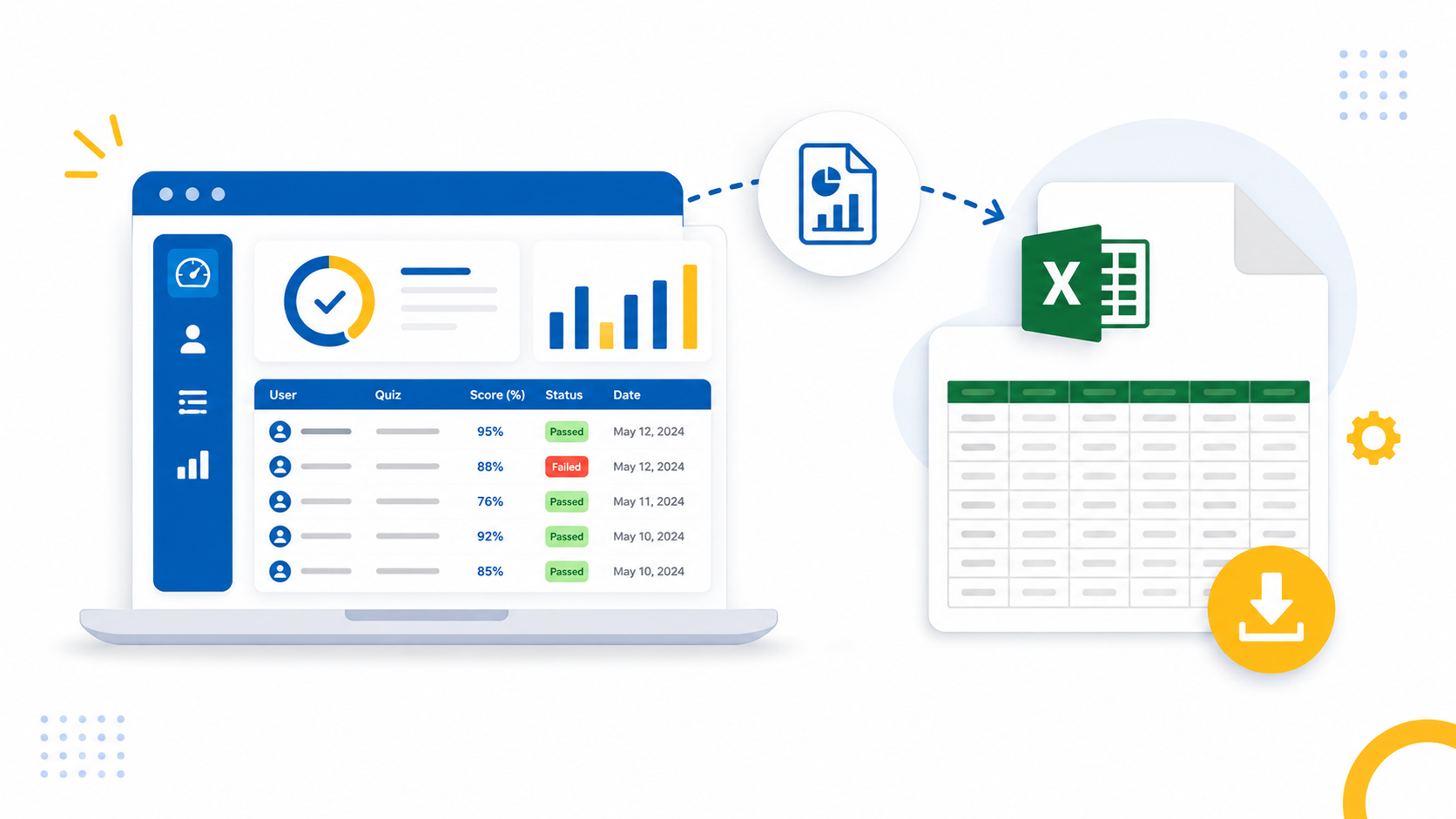
LearnDash quiz reports help course creators, instructors, and training organizations understand how learners perform over time. Managing an online course involves more than publishing lessons and quizzes you also need clear reports to track progress, identify learning gaps, and make informed decisions. Whether you teach students, train employees, or manage certification programs, detailed quiz reports provide the insights needed to improve learning outcomes.
LearnDash includes basic quiz reporting, but many instructors need more detailed reports that can be exported to Excel. These reports often include student answers, correct answers, quiz attempts, question level scores, and date based filtering for easier analysis and record keeping.
In this guide, you’ll learn what LearnDash quiz reports include, where the built in reporting works well, and how to generate detailed Excel reports for deeper analysis.
What Are LearnDash Quiz Reports?
LearnDash quiz reports are records that show how learners performed on quizzes. They typically include quiz scores, attempts, completion dates, and other assessment data that help instructors measure learning outcomes.
Quiz reports play an important role in any Learning Management System (LMS). They help instructors understand learner progress, identify difficult questions, and evaluate the effectiveness of a course.
According to the official LearnDash documentation, administrators can review quiz data directly inside WordPress. However, many organizations also need downloadable reports for analysis, compliance, or sharing with stakeholders.
Why Detailed LearnDash Quiz Reports Matter
Detailed quiz reports provide insights that simple scores cannot. They help instructors understand why learners succeed or struggle instead of only showing the final result.
Imagine two learners who both score 80%. Their final scores appear identical, but their reports may reveal very different learning patterns. One learner may struggle with multiple choice questions, while another consistently misses essay-based assessments. Question level reporting helps identify these differences.
Detailed LearnDash reporting also supports many real world use cases:
- Course creators improving quiz quality
- Corporate trainers tracking employee learning
- Educational institutions reviewing assessment data
- Certification providers maintaining audit records
- Agencies sharing learner reports with clients
Instead of manually reviewing every quiz attempt inside WordPress, instructors can analyze exported reports in Excel, where filtering, sorting, and calculations become much easier.
For organizations that deliver training at scale, exporting quiz reports also creates a permanent record that can be archived or shared whenever needed.
What Data Should a Good LearnDash Quiz Report Include?
A useful LearnDash quiz report should include both learner information and question level assessment data. This allows instructors to review overall performance as well as individual responses.
While every organization has different reporting needs, the following fields are among the most valuable.
| Report Field | Why It Matters |
|---|---|
| Username | Identifies the learner |
| Quiz Title | Shows which assessment was completed |
| Attempt Number | Tracks multiple quiz attempts |
| Question Type | Separates multiple-choice, essay, fill-in-the-blank, and other formats |
| Question Text | Provides context for each response |
| Points Available | Shows the total marks assigned to a question |
| Points Earned | Measures learner performance |
| Correct Answer | Makes answer verification easy |
| User Answer | Helps instructors review responses |
| Time per Question | Identifies questions that require more time |
| Submission Date | Supports reporting by specific time periods |
A report with this level of detail makes it easier to answer questions such as:
- Which questions are most frequently answered incorrectly?
- Which learners required multiple attempts?
- Which quizzes have the lowest average scores?
- How did learner performance change over a selected date range?
These insights support better course improvements than relying on final quiz scores alone.
Looking for Detailed LearnDash Quiz Reports?
With our Export Quizzes Answers for LearnDash plugin, you can export detailed quiz submissions for a specific LearnDash quiz to Excel in just a few clicks. Simply choose a date range, export the report, and review learner performance with ease.
What Does LearnDash’s Built In Quiz Reporting Offer?
LearnDash provides built in quiz reporting that works well for reviewing learner activity inside WordPress. However, organizations that require advanced reporting often need additional export options.
The default reporting tools allow administrators to view quiz statistics, learner progress, and assessment results from the WordPress dashboard. These reports are useful for checking individual quiz performance without leaving your LMS.
For many course creators, this built in functionality is enough for everyday administration.
However, reporting needs often grow as your courses expand. You may need to:
- Share reports with clients or managers
- Archive assessment records
- Analyze quiz performance in Excel
- Filter reports by a custom date range
- Review every learner’s submitted answers
- Compare multiple quiz attempts
These tasks become much easier when you can export quiz data into a spreadsheet instead of reviewing each attempt individually inside WordPress.
Rather than replacing LearnDash’s built in reporting, detailed Excel exports extend its capabilities and make assessment data easier to analyze.
When Should You Export LearnDash Quiz Reports?
Exporting LearnDash quiz reports is useful whenever you need to analyze, share, or archive assessment data outside your WordPress dashboard.
For example, an online academy may generate monthly reports to evaluate learner progress across multiple courses. A corporate training team may export quiz attempts before a compliance audit. An educational institution may download reports to review student performance at the end of each semester.
Exporting reports also makes collaboration easier. Instead of giving external stakeholders access to your WordPress dashboard, you can share an Excel file that contains only the information they need.
How to Generate Detailed LearnDash Quiz Reports in Excel
LearnDash lets you review quiz results inside WordPress, but it doesn’t provide a built in way to export detailed quiz submissions to Excel. With Export Quizzes Answers for LearnDash, you can export submitted quiz data for a specific quiz, including user answers, correct answers, scores, and other question level details.
Step 1: Open the LearnDash Quiz
In your WordPress dashboard, navigate to LearnDash LMS → Quizzes and open the quiz whose submissions you want to export.
Once you’re on the quiz page, you’ll notice a new option called Submitted Quiz Answers, which is added by the plugin.

Step 2: Choose the Date Range
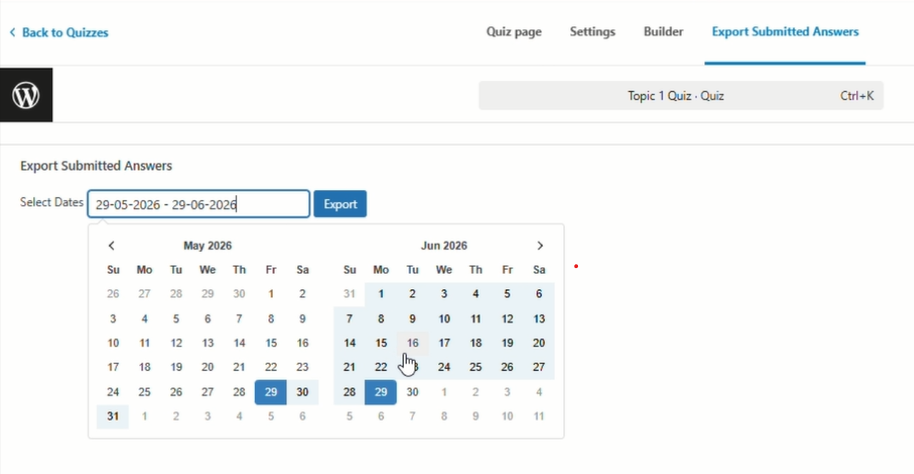
Click Submitted Quiz Answers to open the export screen.
Select a Start Date and End Date to define which quiz submissions you want to include in the report.
This makes it easy to export submissions for a specific time period instead of downloading all historical data.
Step 3: Export the Report
After selecting the date range, click Export.
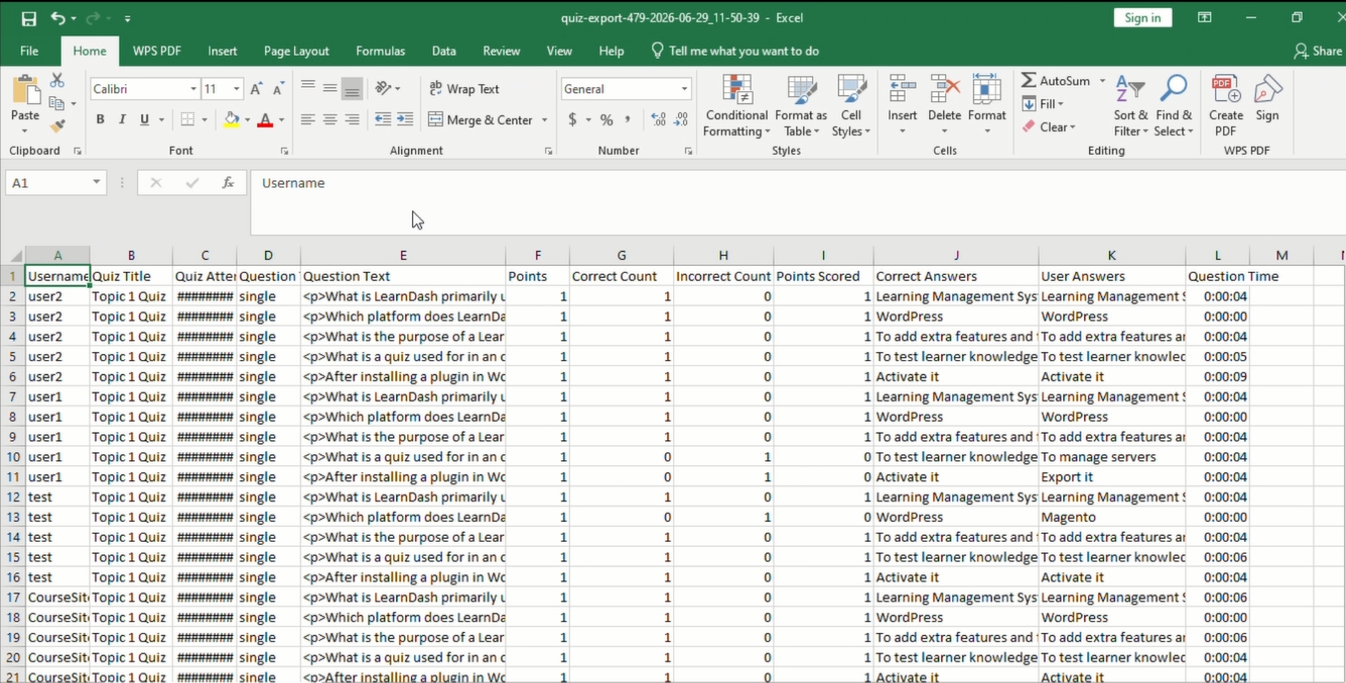
The plugin generates an Excel file containing the submitted quiz data for the selected quiz and date range.
Understanding the Exported Columns
Each column in the exported spreadsheet serves a specific purpose.
| Column | Description |
|---|---|
| Username | The learner who submitted the quiz. |
| Quiz Title | The quiz associated with the submission. |
| Quiz Attempt | Indicates whether it is the first, second, or later attempt. |
| Question Type | Shows whether the question is multiple choice, essay, fill in the blank, and so on. |
| Question | Displays the complete question text. |
| Points | Maximum points available for the question. |
| Correct Count | Number of correct responses recorded. |
| Incorrect Count | Number of incorrect responses. |
| Points Scored | Points earned by the learner. |
| Correct Answer | The expected answer. |
| User Answer | The learner’s submitted response. |
| Question Time | Time spent answering the question. |
| Date | Submission date for filtering and reporting. |
Having all this information in one spreadsheet eliminates the need to open individual quiz attempts inside WordPress.
Why Export LearnDash Quiz Reports to Excel?
Exporting LearnDash quiz reports to Excel makes it easier to review, organize, and analyze quiz data outside your WordPress dashboard.
Instead of opening each quiz attempt individually, you can view all submitted responses in a single spreadsheet. This saves time and helps you quickly identify learner performance and assessment trends.
With the exported report, you can easily:
- Filter quiz submissions by date.
- Review user answers alongside correct answers.
- Compare multiple quiz attempts.
- Identify questions that learners find difficult.
- Share reports with instructors, managers, or clients.
- Keep assessment records for future reference.
For instructors and training organizations, exporting quiz reports simplifies reporting and makes learner data easier to manage.
Best Practices for LearnDash Quiz Reporting
Following a few reporting best practices helps you keep quiz data organized and makes performance analysis more accurate.
- Export quiz reports regularly instead of waiting until the end of a course.
- Use a consistent date range when comparing learner performance.
- Keep exported reports as a backup for future reference.
- Review question level data to identify topics that may need improvement.
- Store learner data securely and follow your organization’s privacy policies.
These simple practices help instructors make better decisions based on reliable assessment data.
Simplify LearnDash Quiz Reporting
LearnDash provides useful built in quiz reporting for reviewing learner activity inside WordPress. However, if you need detailed Excel reports with question level data, exporting quiz submissions can make reporting much more efficient.
With Export Quizzes Answers for LearnDash, you can export submitted quiz answers for a specific quiz, filter records by date, and download a detailed Excel report in just a few clicks. Whether you’re reviewing learner performance, maintaining assessment records, or sharing reports with your team, having the data in Excel makes it easier to manage and analyze.